
Skip to content
Think Crew Support

Think Crew Support

Answers to all of your questions

Account Management

3
  • Subscription Plans and Billing
  • Managing Your Subscription
  • Password Management

Collaboration Features

2
  • Team Collaboration Overview
  • Managing User Permissions

Devices & Internet

3
  • Using Think Crew on Mobile Devices
  • Running Think Crew from Your Desktop
  • Offline Access and Synchronization

Internationalization

4
  • Language Settings and Preferences
  • Available Languages and Translations
  • Setting Measurement Preferences
  • Date and Time Format Customization

Overview

14
  • Introduction to Think Crew
  • System Requirements and Browser Compatibility
  • Creating Your Account
  • Quick Start Guide
  • Navigating the Interface
  • Customizing Your User Profile
  • Your User Page
  • Search
  • Alerts
  • Understanding the Dashboard
  • Permissions Page
  • Keyboard Shortcuts and Time-saving Tips
  • Feature Requests
  • Report an Issue

Progress Reports

1
  • Progress Reports

Projects

6
  • Creating a New Project
  • Projects Page Overview
  • Managing Project Settings
  • Deleting Projects
  • Adding Users to Projects
  • Setting User Permissions

Schedule Page

44
  • Schedules Page Overview
  • Managing Panes (Tab Pane System)
  • Managing Schedule Scenarios
  • Creating and Managing Calendar Events
  • Printing Schedules
  • Schedule Settings
  • Boards
    • Board Views (Strips, Calendar)
    • Working with Boards
    • Recycle Bin
    • Drag and Drop Scheduling
    • Find & Replace
    • Sort & Add Days
    • Updating Multiple Breakdowns (Multi-Select)
  • Breakdowns
    • Breakdown Fundamentals
    • Creating Breakdown Sheets
    • Adding Data to a Breakdown
    • Linking Breakdowns to Scenes
    • Manually Setting a Strip’s Color
  • Categories & Elements
    • Category & Element Fundamentals
    • Managing Elements
    • Managing Categories
    • Working with the Elements Pane
  • Day Out of Days
    • Day Out of Days Overview
    • Where is the Day Out of Days
    • Day Out of Days Views (Grid, Calendar)
    • Selecting a Category and Board
    • Setting a Date Range
    • Day Out of Days Settings
    • Day Out of Days Filtering
    • Managing Totals Columns
    • Solo Elements
    • Show Only Working Elements
    • Changing the Schedule in the Day Out of Days (Moving Columns)
  • Designs
    • Designs Overview
    • Creating a Design
    • Creating a Strip
    • Design a Strip
    • Design Strip Menu Bar – Table
    • Design Strip Menu Bar – Categories
    • Design Strip Menu Bar – Field
    • Design Strip Menu Bar – Format
    • Strip Preview
    • Creating a Palette
    • Sharing Designs, Strips & Palettes

Schedules

6
  • Create a Schedule
  • Duplicating Schedules
  • Import & Export Schedules
  • Moving a Schedule to Another Project
  • Deleting Schedules
  • Revising Scripts

Script Page

5
  • Script Editor Basics
  • Working with Scenes
  • Script Views (Scene, Breakdown, Script)
  • Managing Scene Breakdowns
  • Renumbering Scenes

Scripts

7
  • Importing Scripts
  • Managing a Script
  • Moving a Script to Another Project
  • Scripts Page Overview
  • Deleting Scripts
  • Automatic Scene Descriptions
  • How to Import Scripts from Scriptation

Site Info

3
  • Change Log
  • AI Scene Descriptions: Data Security and Privacy
  • Think Crew Security Overview

Troubleshooting

4
  • Common Issues and Solutions
  • Contacting Support
  • System Status and Maintenance Information
  • How to Hard-Reload Think Crew
View Categories
  • Home
  • Docs
  • Schedule Page
  • Designs
  • Design Strip Menu Bar – Table

Design Strip Menu Bar – Table

2 min read

The Table section of the strip designer menu bar helps you create organized, grid-based layouts for your production strips. Tables provide structure and consistency, making information easier to scan and comprehend quickly.

Table Features #

The Table menu offers several powerful options for organizing your strip content:

  • Rows and Columns: Add, remove, or adjust the number of rows and columns
  • Cell Management: Merge or split cells to create more complex layouts
  • Table Margins: Adjust the top/bottom and left/right margins for the table
  • Table Width: Set the width of the table

Creating an Effective Table Layout #

  1. Start with a Basic Structure:
    • A new strip is pre-populated with some rows and columns
    • Decide if the existing rows and columns are suitable for your design idea
    • Add or remove rows and columns to fit your design
  2. Customize Your Layout:
    • Adjust the column widths by dragging the borders
    • Merge cells that you want to span multiple columns
    • Split cells when you need more granular organization
  3. Optimize for Readability:
    • Set appropriate table margins and width for your design

Table Margins #

Setting the table margins creates padding between the edge of the strip and where the content will appear. Most strip designs will require no margins, but banners or day breaks may look better with some margins applied, depending on your aesthetic ideals.

Table Width #

For strips, most designs can be set to full width. This will allow the strip to use the maximum width available to display your content.

Banners and day strips may benefit from “Auto Sizing” so that their (generally smaller) content is centered in the strip.

Table Design Best Practices #

  • Maintain balance: Keep column widths proportional
  • Use the top row for the most critical information
  • Consider scanning patterns: Western readers scan from top-left to bottom-right
  • Be consistent: Use similar table structures across different strip types

Remember that tables should enhance understanding, not complicate it. A well-designed table layout creates a consistent framework for your production information, making your schedule more accessible to your entire team.

For more information about each designer menu, see these articles:

  • Designer – Categories Menu
  • Designer – Field Menu
  • Designer – Format Menu

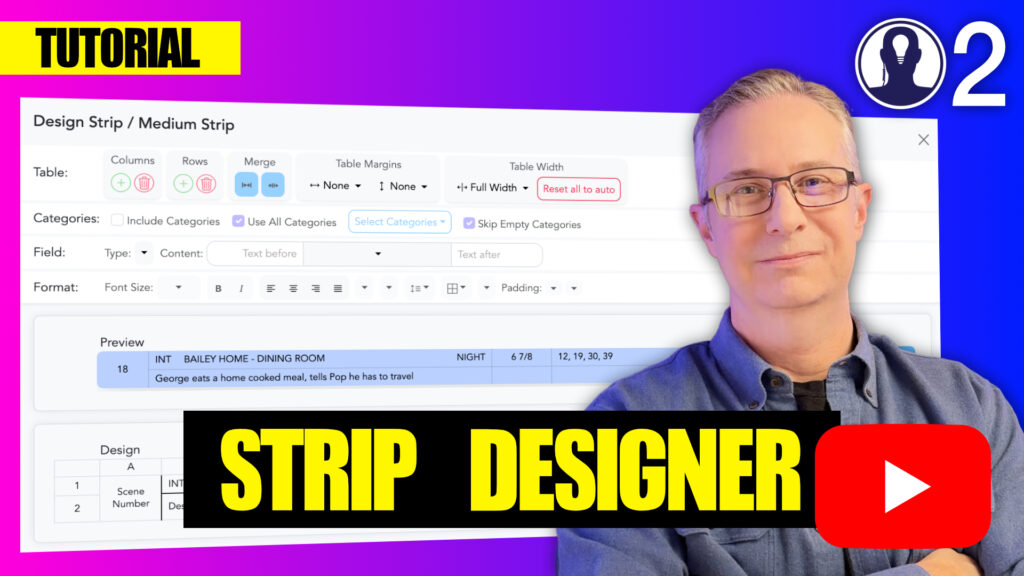
Here is a video that covers designing a strip:
Updated on April 23, 2025
CellManagement

What are your Feelings

  • Happy
  • Normal
  • Sad

Share This Article :

  • Facebook
  • X
  • LinkedIn
  • Pinterest
Design a StripDesign Strip Menu Bar – Categories

Leave a Reply Cancel reply

Your email address will not be published. Required fields are marked *

Table of Contents
  • Table Features
  • Creating an Effective Table Layout
  • Table Margins
  • Table Width
  • Table Design Best Practices
  • Facebook
  • YouTube
  • Instagram
  • Bluesky
Proudly powered by WordPress